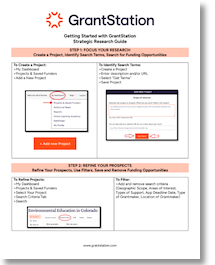
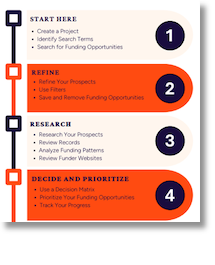
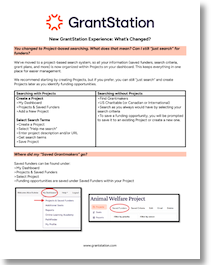
Step 1: Start Here
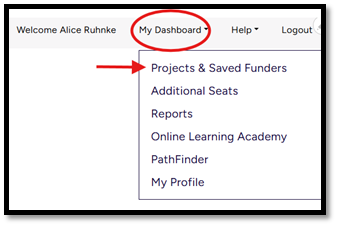
>My Dashboard
>Projects & Saved Funders
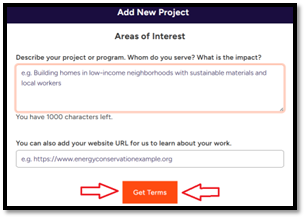
>Add new Project

>Create a Project
>Enter description and/or URL
>Select Get Terms
>Save Project
Step 2: Refine

>My Dashboard
>Projects & Saved Funders
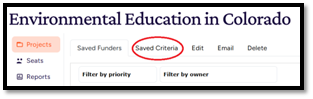
>Select Your Project
>Search Criteria Tab
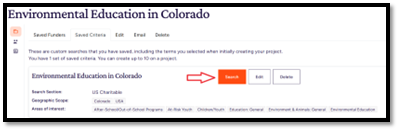
>Search
OR
>Find Grantmakers
>U.S. Charitable Database (or Canadian or International)
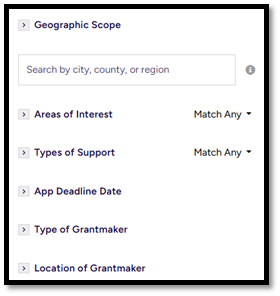
>Select Search Criteria and refine by adding/removing criteria
>To save a funding opportunity, you will be prompted to save it to an existing Project or create a new one.
>Add and remove search criteria (Geographic Scope, Areas of Interest, Types of Support, App Deadline Date, Type of Grantmaker, Location of Grantmaker)
Save and Remove Funding Opportunities:
>Save funding opportunities with the “bookmark” icon
>Remove funding opportunities with the “eye” icon

NOTE: Funders are saved (bookmark icon) within their assigned projects, and any removed/marked “NA” (eye icon) must also be assigned to a project. “Saved” and “NA” tags may appear if applied in another project.
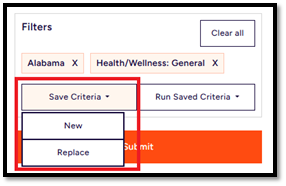
>Select Save Criteria
>Replace existing Saved Criteria or add a New one
Step 3: Research Your Prospects
>My Dashboard
>Projects & Saved Funders
>Select Your Project
>Search Criteria Tab
>Search
>Select View Profile
- Description
- Opportunity Information
- Funder Information
- Requirements
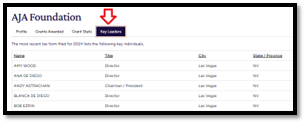
- Contact information
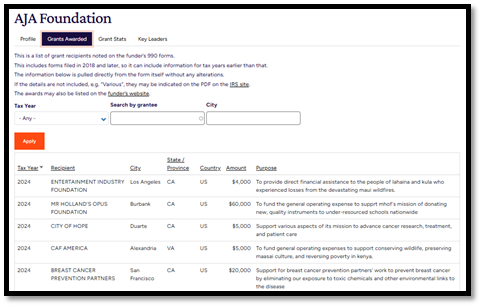
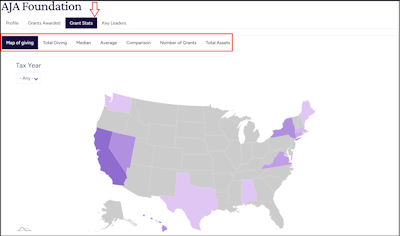
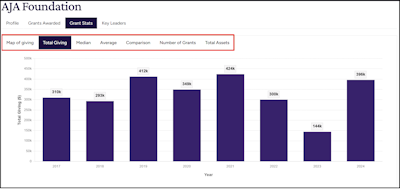
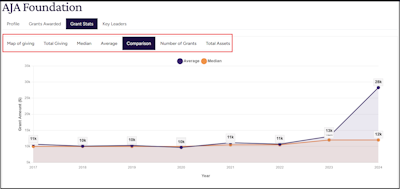
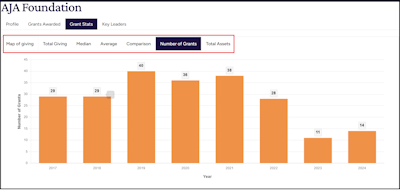
- Grants History
Links to websites are included when available
Step 4: Prioritize Your Funding Opportunities
>Select a Saved Funding Opportunity
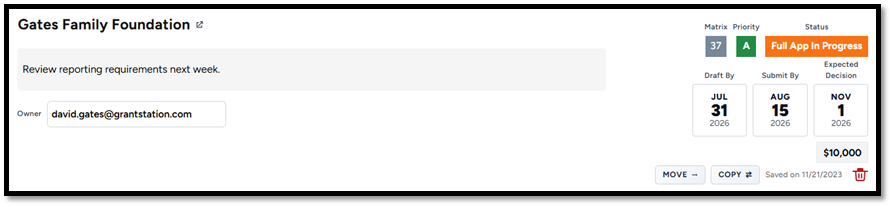
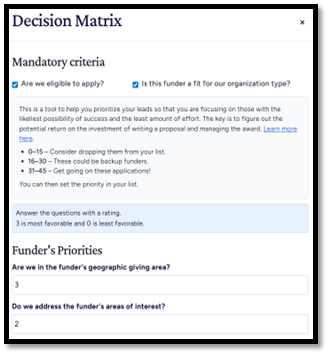
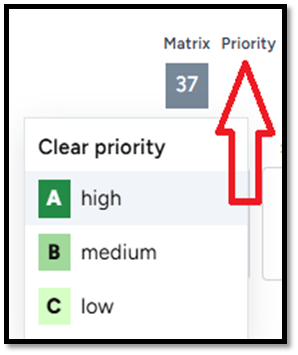
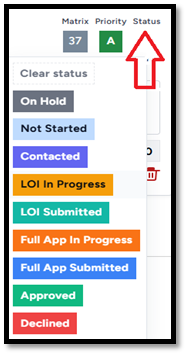
> Use your Decision Matrix; Set Priorities, and Status; Add Dates, Amount Requested, and Notes right in the card.